
HELP AND SUPPORT
Germanacharya user guide
Learn how to practise for Goethe and TELC A1–B2, manage your Germanacharya account, and use AI feedback and credits.
Updated 29 October 2026
Free account and Premium Membership
| Feature | Free account | Active Premium Membership |
|---|---|---|
| Exam practice | 15 answered questions across the account | Full available practice at the activated level |
| AI evaluation | 5 lifetime credits | 100 credits/day shared across unlocked levels |
| Chat tutor | 5 sent messages/day | Normally 100/day in an eligible paid question context |
| Level coverage | Free allowances across available levels | One chosen level across Goethe and TELC |
| Transcript and sample-answer review | Requires paid access for the level | Included where the task provides it |
| Grammar topics | Signed-in nouns-and-articles topics | Topics covered by your activated level |
| Monthly plan | No payment needed | €32.12 Euro / USD $36.13 Universal / INR ₹3,263.24 UPI for 30 days |
01
Find your exam and start practising
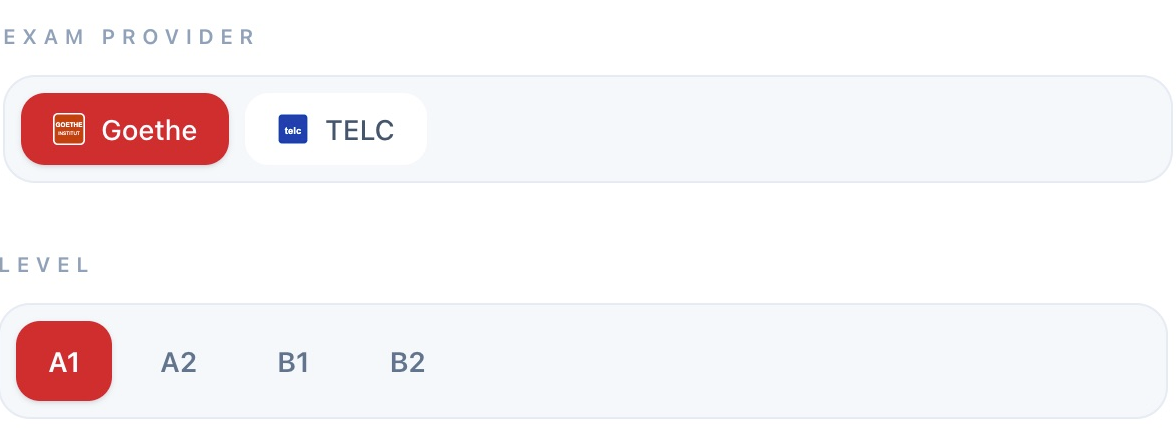
Choose Goethe or TELC, then your level and the skill you want to practise. The portal currently offers A1, A2, B1 and B2.
- Create an account or sign in. If you registered with email and a password, complete email verification before signing in.
- Choose Goethe or TELC from the navigation, then select A1, A2, B1 or B2.
- Choose Hören (listening), Lesen (reading), Schreiben (writing) or Sprechen (speaking).
- Open a Teil (exam part) and a practice set. Read the task instructions before starting.
- Answer, review feedback, and use the part and question navigation to continue.
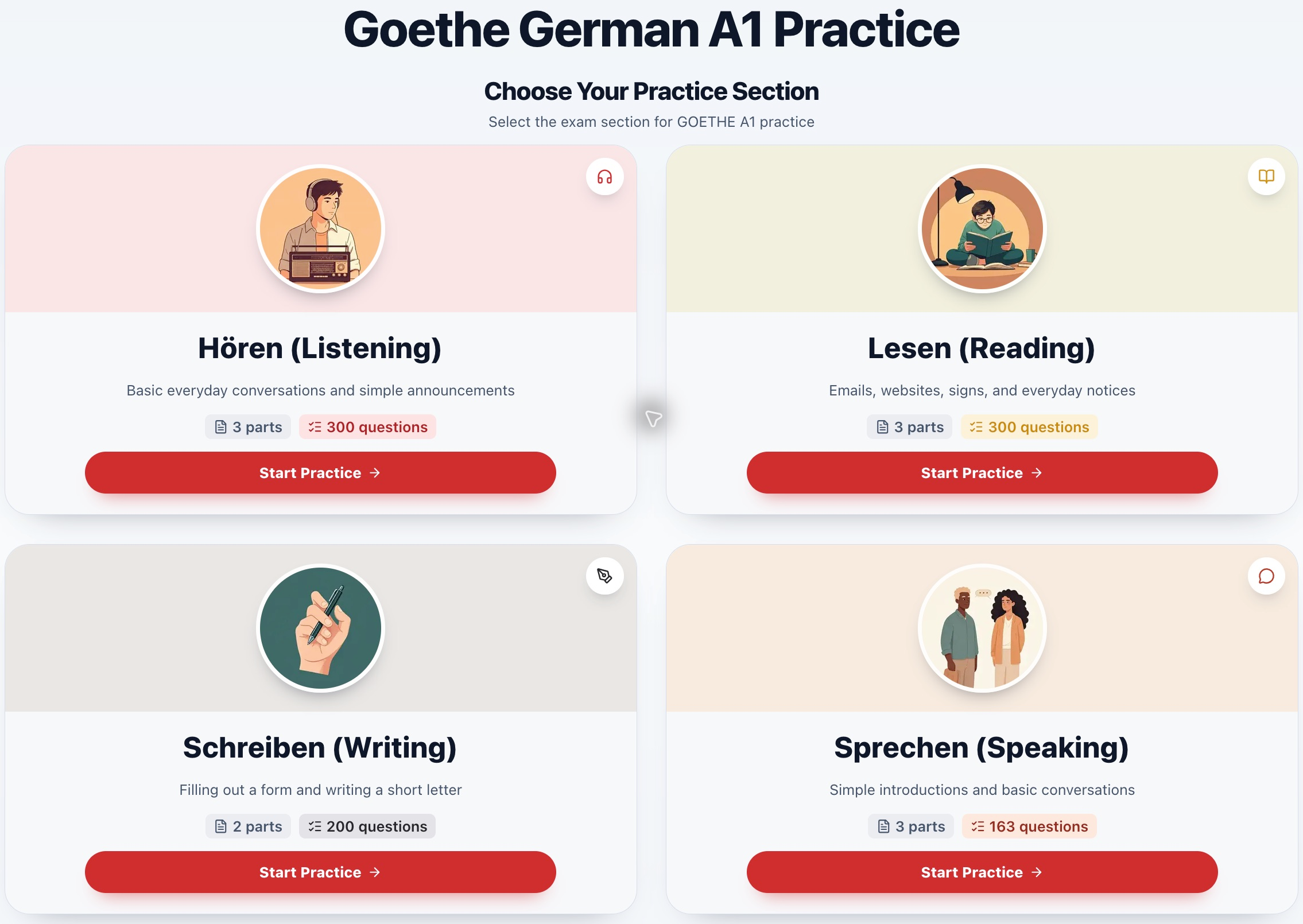
The interface language can be English or German. Exam tasks and the German skill names remain in German.
Choosing a level is a navigation choice. It does not activate paid access for that level.
02
Understand your dashboard
The dashboard brings together learning access, AI credits and your practice progress. Use the provider and level filters to view the area you are working on.
- Open Dashboard in the navigation or your account menu.
- Check Your learning access for unlocked levels and expiry dates. Open Pricing to read about monthly membership.
- Read Your AI credits for the remaining evaluation allowance. An account-level balance is shared across unlocked levels.
- Select Goethe or TELC and the level to review answered, correct, incorrect and remaining questions.
- Inspect the breakdown by skill and exam part, then return to the parts that need more practice.
A Premium badge can mean you have access to at least one level. Check the individual level cards before assuming every level is unlocked.
Accuracy and completion describe your practice history. They are not an official exam result.
03
Monthly Premium Membership
€32.12 Euro / USD $36.13 Universal / INR ₹3,263.24 via UPI QR for 30 days at your selected level, including Goethe and telc. Access is matched to your verified account email after the Exly confirmation is validated.
- Open Pricing and choose A1, A2, B1 or B2.
- Both cards cover only your selected level and include Goethe and telc. Selecting a level alone does not activate access.
- Euro shows €32.12, Universal USD $36.13 and QR/UPI INR ₹3,263.24. All options have identical features and AI allowances.
- For UPI, select your level first, then scan or download its QR image. Check INR ₹3,263.24 and recipient Myscoot Tech Pvt Ltd in your UPI app. Scanning alone does not activate access.
- Use the same email at checkout as your verified platform account. Once the confirmation is validated, your level access appears on Dashboard. This also applies to orders with a 100% discount coupon.
Monthly membership is a one-time purchase for 30 days with no automatic renewal. Other levels are not included.
These are separate payment amounts, not a live conversion. Review the amount and currency before paying. Changing the selected level also changes the displayed QR code.
Each account shares 100 daily AI credits across its active paid levels; expiry does not automatically delete your account or progress.
If the checkout email differs or access is missing, contact support with your account email and purchased level.
04
Know what uses AI credits
AI evaluation credits pay for speaking and writing assessment requests. They are separate from your practice-question allowance and the chat-message allowance.
- Check the remaining balance on Dashboard, Learning access or the evaluation panel before beginning.
- Budget 100 credits per day for level purchases. All unlocked levels share that pool; adding levels or renewing paid access does not multiply it.
- A standalone writing evaluation or recorded speaking evaluation uses one credit per request. Re-evaluating uses another credit.
- Roleplay uses one credit when the AI starts, one for each learner turn sent, and one for the final evaluation. If you start, the initial start action uses no credit.
- Read a saved evaluation again without requesting a fresh evaluation. Use Retry save for an existing writing result rather than generating a new result.
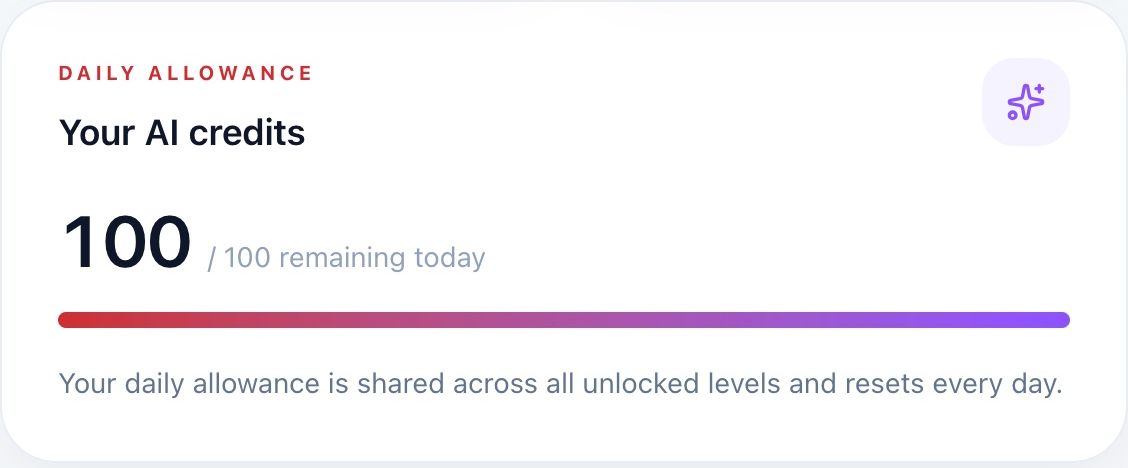
Example: an AI-started roleplay with four learner turns and a final evaluation uses 6 credits. A learner-started version uses 5.
Premium daily evaluation credits reset at 00:00 UTC. Free accounts receive 5 lifetime evaluation credits, which do not reset each day.
Your paid-level daily balance does not refill your lifetime free balance for unpaid levels.
Failed standalone writing or speaking evaluations refund their reserved credit. Roleplay requests keep their existing charge-per-request behavior, so a failed request can still use a credit.
| Action | Evaluation credits |
|---|---|
| Standalone writing evaluation | 1 |
| Standalone recorded speaking evaluation | 1 |
| AI opens a roleplay | 1 |
| Learner starts a roleplay | 0 for the start action |
| Each learner roleplay turn sent | 1 |
| Final roleplay evaluation | 1 |
| Reopen a saved evaluation | 0 |
| Retry saving an existing writing evaluation | 0 |
| Chat message | Separate chat allowance |
05
Practise reading and listening
Reading and listening practice follow the selected exam’s task format. Submit the answers before using review material to understand what you missed.
- Read the instruction, question and answer options. Match items or fill blanks where the task requires it.
- For listening, start the audio with Play. Use pause, replay, the position control and speed options when available in the current task.
- Submit or check your answers using the task’s own control. Review the marked answers and available explanations.
- After answering, use the Premium transcript review where the task offers it. The transcript is a level-access feature.
- Move between questions, sets and Teile using the practice navigation.

Audio controls depend on the task and mode. Some tasks keep playback restrictions until the first complete listen or enforce an exam-style play count.
Where Highlighter is offered on reading source text, turn it on and select a useful phrase. Clear highlights removes the marks rather than your submitted answers.
Protected transcripts and sample answers require access to the question’s level, even if another level is unlocked.
Reset session or Clear progress removes the selected saved practice work after confirmation. It does not renew free allowances or AI credits.
06
Write your answer and review AI feedback
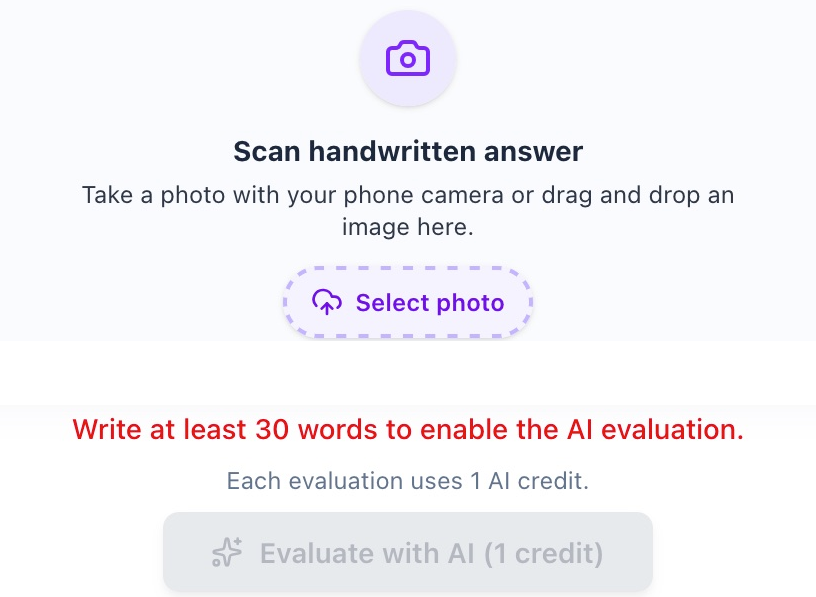
The writing task combines your answer with task-specific AI feedback. You can type an answer or transcribe a photograph of handwritten work where the upload tool is shown.
- Read the situation, recipient, required points and word guidance. Choose the task where a choice is offered.
- Write your own German answer in the editor. Watch the word counter and the minimum needed to enable evaluation.
- For handwriting, select Scan handwritten answer and upload a clear PNG, JPEG or WebP image no larger than 5 MB. Check the transcription before using it.
- Use the task’s evaluation control when ready. The evaluation uses one AI credit.
- Read the score, task-fulfilment feedback, grammar corrections, improved phrasing and next steps. Check the Saved or Unsaved changes status.
- If the evaluation succeeded but saving failed, use Retry save to store the existing result without spending another evaluation credit.
A draft restored in the same browser is not the same as an answer confirmed saved to your account. Keep an external copy of important writing until the app confirms it is saved.
A handwriting transcription can misread words. Correct transcription errors before grading, while keeping your own language mistakes for useful feedback.
Sample answers are Premium review material. Use them to compare structure after trying the task yourself.
07
Use AI roleplay and pronunciation feedback
Speaking practice lets you record your responses and, for roleplay tasks, take turns with an AI partner. The final evaluation combines the conversation with the retained pronunciation evidence.
- Open Sprechen for your provider and level, select the exam part and read the scenario.
- Choose who starts when the task allows it. Some tasks use a fixed AI opening; the panel shows the planned flow and estimated credits.
- Allow microphone access in the browser. Record your response, stop, listen to the preview, and send the turn when ready.
- Listen to the AI partner’s reply and respond to the current prompt. Repeat until the roleplay is complete.
- Request the final evaluation and review task completion, interaction, language corrections, pronunciation feedback and practice tips.
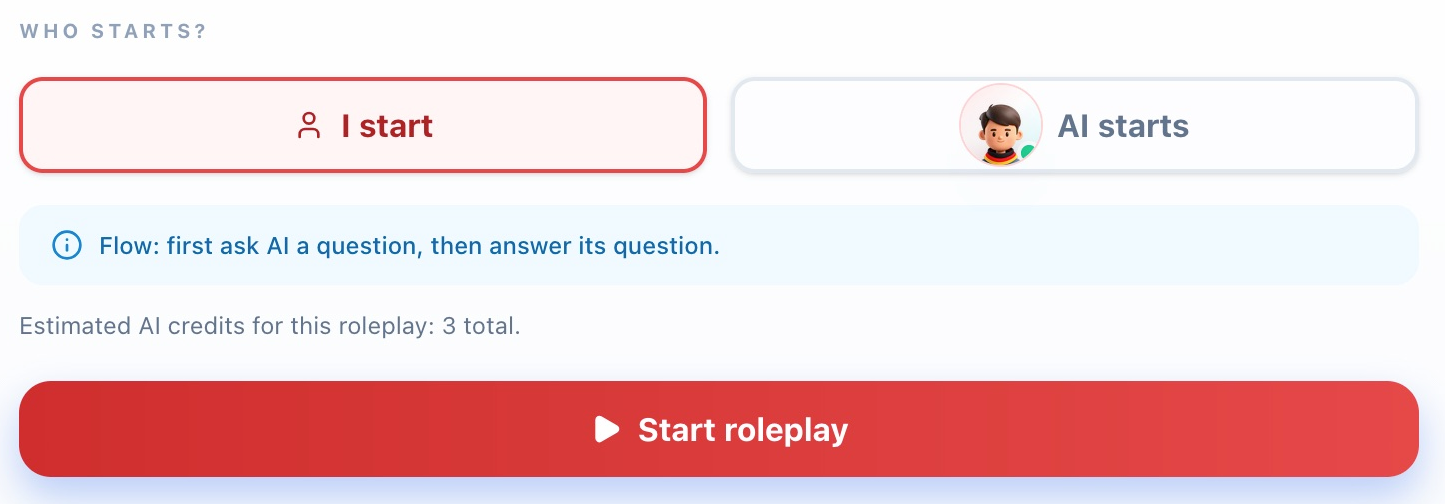
Audio-based pronunciation assessment is supported in TELC and Goethe A1–B2 roleplays. A1 self-introduction uses a separate recorded speaking evaluator.
Pronunciation is judged from recorded audio, not inferred from transcript text. A harmless accent should not be treated as a mistake merely because it differs from a native accent.
Pronunciation uses level-specific checks for usable speech. Clear short A1/A2 responses can receive feedback; pauses do not count as voice activity. The result explains when more speech or a clearer recording is needed.
Short, noisy or unclear recordings show Not acoustically assessed. No pronunciation grade is added when the audio cannot be assessed.
The AI partner stays in the exam conversation. Pronunciation coaching appears in the final evaluation rather than interrupting every turn.
08
Ask the chat tutor for help
The floating tutor is available while signed in. Use it for explanations, vocabulary, grammar and help with the current practice question.
- Open the tutor button near the lower-right corner of the page.
- Ask a specific question, such as Explain why this answer is correct or Give me two examples with this word.
- Ask in the language you want the explanation to use. The tutor is instructed to respond in that language and keep German examples in German.
- When practising, keep the relevant question open so the tutor can use its available context.
- Use New conversation and the history controls to manage chats. Deleting a conversation removes that saved chat.
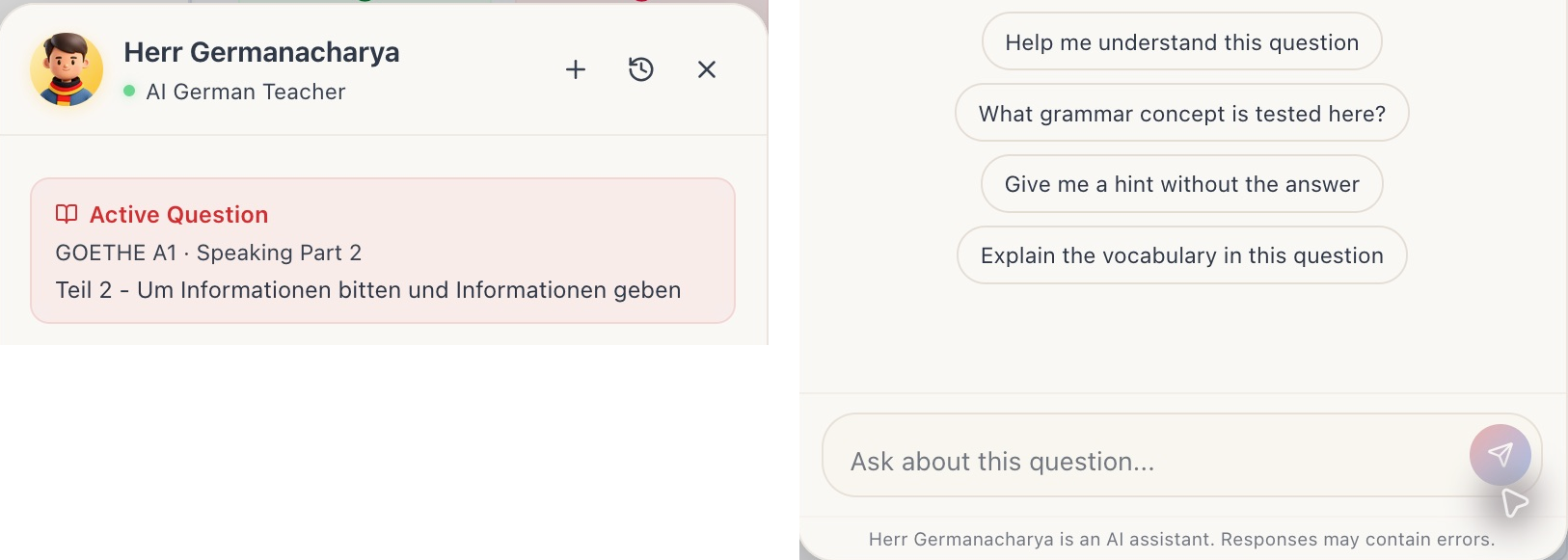
Free chat permits 5 sent messages per day. Paid question contexts normally permit 100 per day. Chat does not spend the speaking/writing AI evaluation-credit pool.
Premium chat access is checked against the current question’s level. A general chat without an eligible question or level context can use the free message limit, even on an account with paid level access.
Listening transcripts can be explained in chat only when the account has access to that question’s level.
Chat can make mistakes. Cross-check exam instructions and use teacher feedback for important decisions.
09
Study grammar with examples and exercises
Grammar is organised into categories and topics, with explanations and interactive exercises. Topic access follows the topic’s level.
- Open Grammar from the navigation and choose a category such as verbs, cases, prepositions or sentence structure.
- Select a topic and use its available tabs to read explanations and examples.
- Complete the exercises and review the corrections. Return to the explanation when the pattern is unclear.
- Use the grammar point in a writing answer or speaking response to reinforce it.
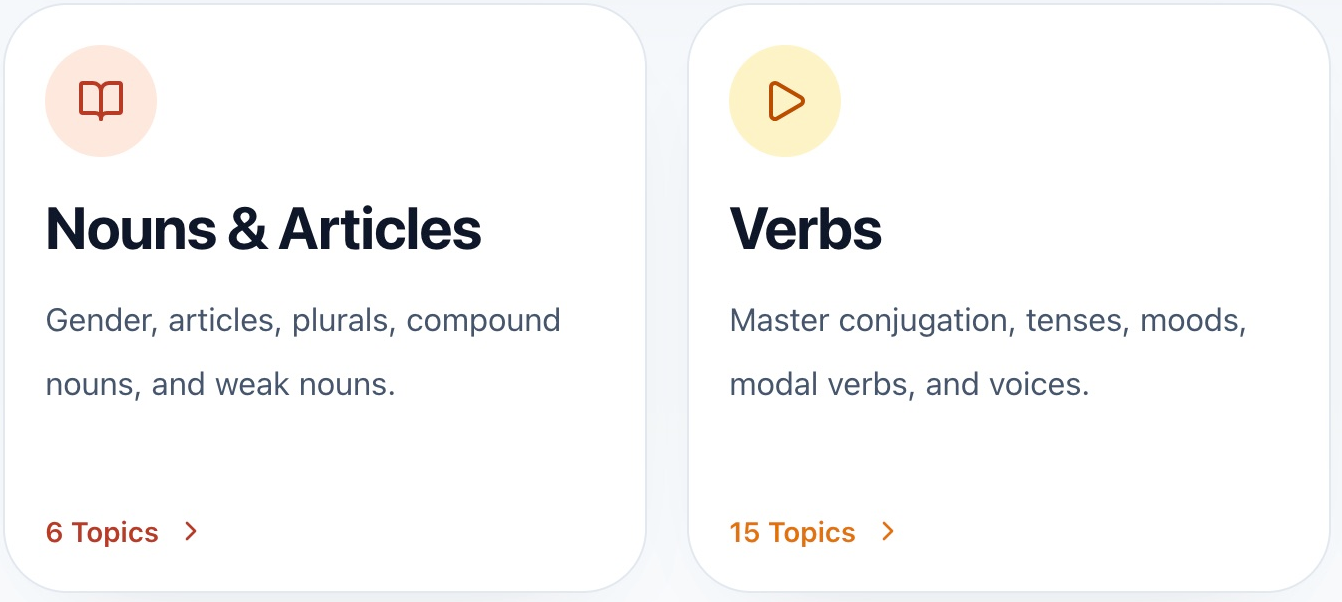
Signed-in learners can open the nouns-and-articles category’s topics without paid level access in the current offering. Other topics require access to the topic’s level.
Grammar practice is separate from an official exam score. Use the listed level to decide what is appropriate for your study plan.
10
Manage settings and get support
Account Settings shows your identity, learning access and account actions. Display and cookie preferences live in their own controls.
- Open your profile menu, then Settings to view your name, email and access information.
- Use the header language selector to switch English or German. Use the sun/moon control to change the display theme.
- For an email-and-password account, use Forgot password on the sign-in page if you need a password reset.
- Open Privacy and its cookie settings control to change optional analytics consent.
- Use Contact or the footer feedback controls to report a problem. Include provider, level, skill, Teil, the page address and the exact error; screenshots help.
- Use Sign out when finished on a shared device. Account deletion is available in Settings and requires an explicit confirmation.

Signing in elsewhere can end a previous active session. If a session expires or you are signed out, sign in again and return to your work.
Deleting an account with purchases or other linked records may require review. Ordinary eligible accounts have a safety period before deletion. This is different from signing out.
Keep passwords and payment references private.
Screenshots show the learner interface. Balances, dates and progress vary by account.
Frequently asked questions
Quick answers about access, credits, practice and your account.
What does a free account include?
You can answer up to 15 practice questions across the account, use 5 lifetime AI evaluation credits, and send 5 tutor messages per day. Free allowances are shared rather than restarted for each provider or level. Signed-in nouns-and-articles grammar topics are also available. Premium transcripts, sample answers and further level access require paid access.
Is the free question allowance per day or per level?
Neither. The 15-answer allowance is account-wide and does not refresh each day. Changing provider or level, clearing answers or restarting a session does not reset it.
What does monthly membership include?
It unlocks the selected level for both Goethe and TELC, including the available reading, listening, writing and speaking practice, protected review materials and eligible grammar topics. AI evaluation uses the daily account allowance rather than an unlimited number of requests.
Does a B1 membership also unlock A1, A2 and B2?
No. New purchases activate one chosen level. Each additional level requires its own purchase. Some older account-wide premium grants and administrator accounts can have broader rights; check the level cards on your own account.
Why does my account say Premium while another level is locked?
The badge can reflect any active paid level. The individual A1–B2 cards show your actual access. A Premium badge is not evidence that every level has been activated.
Can I buy access now?
Use an available payment option for your selected level and the same email as your verified platform account. Access is activated after the Exly confirmation is validated, including eligible 100%-discount orders. Scanning or returning from checkout alone does not activate access. Contact Germanacharya if access is missing.
How long does paid access last?
Monthly membership is a one-time purchase of 30 days from activation: €32.12 via Euro checkout or USD $36.13 via Universal checkout. No automatic renewal.
Can I transfer my access?
Access is personal to your account and selected level. Contact Germanacharya support if you selected the wrong level.
What happens when my access expires?
Premium access for that level ends unless another active period covers it. Other active levels and any remaining free allowance remain available. Your account and learning history are not automatically deleted. There is no automatic renewal or payment.
How many AI credits does monthly membership include?
Both payment options include 100 AI credits per account per day for writing and speaking. All active paid levels share this allowance. Renewals and additional level purchases do not increase it. Credits reset at 00:00 UTC; unused daily credits do not carry over.
When do AI credits reset?
The paid daily pool resets at midnight UTC. Free evaluation credits are a lifetime allowance and do not reset daily. Unused daily evaluation credits do not accumulate into a larger next-day balance.
How many credits does an AI roleplay use?
One when the AI starts, one for each learner turn sent, and one for the final evaluation. If the learner starts, the initial start action uses no credit. For example, four learner turns plus AI opening plus evaluation uses 6 credits.
Does chat use my speaking and writing evaluation credits?
No. Chat has a separate daily sent-message allowance: 5 for free use and normally 100 in a paid question context. The evaluation balance applies to speaking and writing assessment requests.
Are failed AI requests refunded?
Failed standalone writing and speaking evaluations refund the reserved evaluation credit. Roleplay keeps a charge-per-request policy, so a failed roleplay request can still consume a credit. If a writing evaluation is already generated and only saving failed, Retry save stores it without a fresh evaluation charge.
Why did another level show free AI credits instead of my daily balance?
The daily premium pool applies to levels you have activated. An unpaid level uses your remaining lifetime free allowance. Having an active access elsewhere does not refill the free allowance.
Why can I not open a transcript or sample answer?
These are Premium review materials tied to the current question’s level. Activate that level and complete the required answer/review stage. Another level access does not unlock this question’s protected materials.
Why is the evaluation button disabled?
Check the word minimum for writing, the recording and required-turn count for speaking, and the remaining credit balance. An evaluation cannot start while the recording or another request is still running. Read the inline message beside the control.
Can I upload handwritten writing?
Yes, where Scan handwritten answer is offered. Upload a PNG, JPEG or WebP image of at most 5 MB. Review the transcription for recognition errors before evaluating it.
Is a restored writing draft already saved to my account?
Not necessarily. The editor can restore local browser work. Saved means the server confirmed the saved answer; Unsaved changes means the current text differs from that answer. Keep a separate copy of important work until saving is confirmed.
Does resetting practice restore questions or credits?
No. Reset session or Clear progress removes selected saved work after confirmation. It does not renew the free-question allowance, the lifetime free AI pool or the daily credit limit.
My microphone or listening audio is not working. What should I check?
Check the browser’s microphone permission for this site, your selected input device and microphone level. For listening, check device volume, mute status and output selection. Close competing audio apps if necessary, use the player’s retry control, and include the page address and browser details if you contact support.
Can I switch interface language and theme?
Yes. Use the English/German selector and the sun/moon control in the header. The exam tasks remain German. Cookie consent can be changed through Privacy → cookie settings.
Why was I signed out when I logged in elsewhere?
The account uses an active-session policy. Signing in on another device or browser can end the previous session. Sign in again and return to your saved work.
How do I report an error or ask for help?
Use Contact or the footer feedback controls. Include the page address, provider, level, skill, Teil and the exact error. Attach a screenshot if helpful. For access problems, contact Germanacharya support directly; keep payment references private.
Still need help?
Send the page address and error details so we can help with the right activity.
Contact support